Day 7 of your Bootstrap learning adventure! Today we are going to explore three cool features that will make your site more interactive and give it a personal touch: notification toasts, Bootstrap icons, and custom themes.
Toasts are those friendly little pop-up messages in apps that give feedback to the user without being disruptive. Bootstrap icons give you access to a huge assortment of beautiful, useful icons. Custom themes allow you to truly personalize Bootstrap by changing colors and styles. These are good skills to have in your tool kit because they help you design professional, user-friendly interfaces that don’t look like generic Bootstrap websites!
Let’s first look at the base of our project:
<title>Bootstrap Day 7 - Toast, Icons, Custom Theme</title>
<!-- Bootstrap CSS -->
<!-- Bootstrap Icons -->
<!-- Bootstrap JavaScript -->
/* We'll add our custom styles here */
<!-- Our content will go here -->
What This Does:
Pro Tip: Be sure to always place the Bootstrap JavaScript bundle after your custom styles and before the closing </body> tag for best performance.
Next, let’s update the default colors provided by Bootstrap:
:root {
--bs-primary: #6f42c1;
--bs-success: #27ae60;
--bs-body-bg: #f8f9fa;
--bs-body-color: #2c3e50;
}
body {
background-color: var(--bs-body-bg);
color: var(--bs-body-color);
font-family: 'Segoe UI', sans-serif;
}
What This Does:
Why we do this: You can use CSS variables to format multiple elements at once. If you write and update –bs-primary, all entries using the primary color will change!
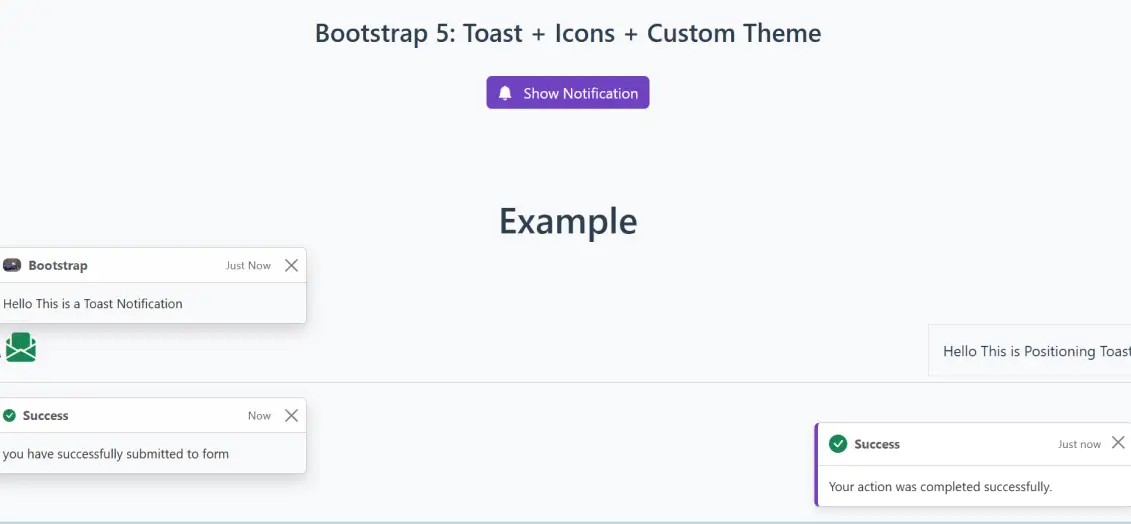
We are going to create a simple button that would trigger our toast notification:
<div class="container text-center mt-5">
<h3>Bootstrap 5: Toast + Icons + Custom Theme</h3>
<button class="btn btn-custom mt-4">
<i class="bi bi-bell-fill me-2"></i> Show Notification
</button>
</div>
What this does:
Note: The btn-custom class does not exist yet. We will create it in the next step!
We will define and style the button and toast notification:
.btn-custom {
background-color: var(--bs-primary);
color: white;
border: none;
}
.btn-custom:hover {
background-color: #5a32a3;
}
.toast-custom {
background-color: #fff;
border-left: 4px solid var(--bs-primary);
box-shadow: 0 4px 8px rgba(0,0,0,0.1);
}
Here’s what it does:
Common Mistake: If you forget to include a hover state, buttons can appear unresponsive. Whenever you have a button, always include a hover state!
The next step is constructing the toast notification itself:
<div class="position-fixed bottom-0 end-0 p-3" style="z-index: 1050">
<div id="liveToast" class="toast toast-custom align-items-center" role="alert" aria-live="assertive">
<div class="toast-header">
<i class="bi bi-check-circle-fill text-success me-2 fs-5"></i>
<strong class="me-auto">Success</strong>
<small>Just now</small>
<button type="button" class="btn-close ms-2 mb-1" data-bs-dismiss="toast" aria-label="Close"></button>
</div>
<div class="toast-body">
Your action was completed successfully.
</div>
</div>
</div>
What does it do?
To be accessible: The aria-live, aria-atomic, and role attributes announce to screen readers that the toast is visually impaired users friendly. You Need JavaScript!
Now that we have the toast working, we need to make it interactive using JavaScript:
function showToast() {
const toastEl = document.getElementById('liveToast');
const toast = new bootstrap.Toast(toastEl, {
delay: 3000,
autohide: true
});
toast.show();
}
Here’s what it does:
Pro tip: you can customize the toast also with other options like animation: false if you want to disable the fading effect.
Custom Theme Implementation
:root {
--bs-primary: #6f42c1;
--bs-success: #27ae60;
--bs-body-bg: #f8f9fa;
--bs-body-color: #2c3e50;
}
This section demonstrates CSS custom properties (variables) that Bootstrap 5 uses extensively. By overriding these variables in the :root selector, you’re telling Bootstrap to use your colors instead of the default ones. This is much more efficient than manually overriding each component’s color individually.
Toast Positioning System
<div class="position-fixed bottom-0 end-0 p-3" style="z-index: 1050">
Bootstrap uses utility classes for positioning:
Bootstrap Icons Integration
<i class="bi bi-check-circle-fill text-success me-2 fs-5"></i>
Bootstrap Icons use a much more simple class-based system:
A. Components / Keywords Used
Name | Description |
toast | A small notification message that appears temporarily |
position-fixed | CSS positioning that keeps element in view during scroll |
bootstrap.Toast() | JavaScript class that controls toast behavior |
Bootstrap Icons | Free, open-source icon library |
:root | CSS pseudo-class for defining global variables |
CSS Variables | Custom properties that can be reused throughout CSS |
B. Key Properties / Parameters / Features
Name | Description |
delay | How long (ms) the toast stays visible before auto-hiding |
autohide | Boolean that controls if toast disappears automatically |
z-index | Controls stacking order (which elements appear on top) |
data-bs-dismiss | Attribute that enables Bootstrap’s dismiss functionality |
aria-live | Accessibility attribute for dynamic content announcements |
var() | CSS function to use custom property values |
You’ll learn about the many different UI components that Bootstrap provides, including Toasts and Custom Themes (a way for you to customize your design palette based on the needs of your users). You’ll also learn how to style Toasts using jQuery and Bootstrap Utilities, add Toasts to your application using JavaScript, style components without writing custom CSS, and modify Bootstrap’s color palette using CSS Variables and SCSS to match your brand identity. Finally, by the end of Day 7, you’ll be able to add multiple ways of alerting users, extensively customize the look of the Bootstrap framework, and add visual identifiers to help improve the user’s experience—all of which are going to take your front-end development skills another step.
Toasts are lightweight notification components used to show short, non-intrusive messages such as form success, errors, or system alerts. They appear temporarily and disappear automatically unless configured otherwise.
Custom theming allows you to modify Bootstrap’s default styles—such as colors, borders, fonts, spacing, and component behavior—to match your brand using CSS variables or SCSS customization.
Bootstrap Icons are an official icon library containing 1,800+ SVG icons designed to work perfectly with Bootstrap UI components.
No, You can create a custom theme using just CSS variables. However, SCSS gives more advanced control over Bootstrap’s design system.
No, They are a separate library, so you must include their CDN or download the icons manually.
3rd Floor, Aval Complex, University Road, above Balaji Super Market, Panchayat Nagar Chowk, Indira Circle, Rajkot, Gujarat 360005.
Abbotsford, BC
15th B Street 103, al Otaiba Dubai DU 00000, United Arab Emirates
3rd Floor, Aval Complex, University Road, above Balaji Super Market, Panchayat Nagar Chowk, Indira Circle, Rajkot, Gujarat 360005.
Abbotsford, BC
15th B Street 103, al Otaiba Dubai DU 00000, United Arab Emirates
Copyright © 2026 Niotechone Software Solution Pvt. Ltd. All Rights Reserved.