How to Customize Content by Country with Shopify

Are your clients’ online stores or your app equipped to leverage cross-border shopping this holiday season? In this advanced tutorial, we cover how to serve content and products to targeted countries or regions, so you and your clients can maximize brand reach, and improve the customer and user experience.

The process is called localization, and represents one of your biggest growth opportunities. Whether you’re a Shopify Partner, Developer, or merchant. With more and more consumers shopping cross-border, it’s becoming more obvious that global ecommerce isn’t just an option anymore; it’s a necessity, and your client’s success depends on it.

Today, more than 27 percent of all traffic on Shopify online stores is from international buyers—and yet cross-border traffic continues to convert at a significantly lower rate than domestic, in large part due to poor customer experiences. 

Shopify’s international sales tools, our global commerce solution, aims to fix this with custom buying experiences by market, while also enabling you and your clients to reach new markets and customers, and scale faster with settings that automatically optimize businesses across markets. 

And you can now further improve your client’s customers’ experience by providing them with exclusive content or products based on where they’re shopping from, such as:

  • Displaying a different home page banner to different countries
  • Hiding products on collection pages that don’t ship to certain countries
  • Changing content on a product page based on country


In this tutorial, we’ll cover how to serve content and products to targeted countries or regions, so you and your clients can maximize brand reach and improve customers’ and users’ overall experience. Let’s get started.

Prerequisites to customizing content by country or region

First, you’ll need to be logged into the store you want to work on and have permissions to access Online Store Theme editing as well as Products, which is where we will be working out of. This could be your own store, or a collaborator account on your client’s store. 

If you don’t have a login, then request one from your admin or client directly. This tutorial will use Shopify’s Dawn theme as an example, however, the approaches outlined below are theme agnostic and can be applied to your theme of choice.

Install the Dawn theme if you want to follow along to this tutorial exactly.

Second, country is considered a context on the Shopify platform. To change content based on a customer’s country, you need to place them into the correct context. To do this, you should be using a country selector, at a minimum. Country selectors allow your customers to choose their context (e.g. Canada, United States, Australia). 

Dawn comes with country selection built in. If you’re using another theme, you can also add your own country selectors using this guide, or by using Shopify’s Geolocation app. If you’re using an old currency selector, you should update it to use the country context.

Finally, you should be familiar with both the localization and country Liquid objects to leverage this tutorial.

How to customize content by country in Shopify

Using the localization and country objects, you can wrap content that conditionally shows, hides, or changes content based on the customer’s context. For example:

Copy to clipboard
{% if localization.country.iso_code == 'FR' %}
  // show custom content only meant for France
{% else %}
  show generic content
{% endif %}

This approach can be used in a variety of ways, which we’ll display using Shopify’s Dawn theme.

Change product content based on country

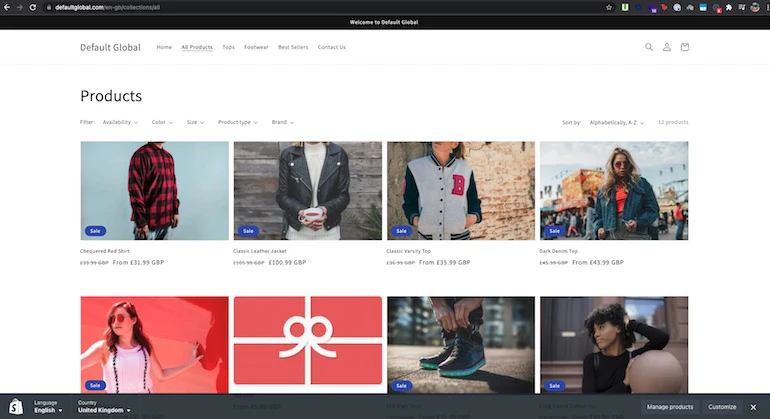
Similarly, you can hide those products from being displayed on collection pages as well. Again, the Blue Silk Tuxedo has been tagged with do_not_sell_to_UK, and we want to hide it from collection pages when someone is browsing from the United Kingdom by editing the main-collection-product-grid section:

Copy to clipboard
{% comment %}
Hide products on collection pages that are tagged with do_not_sell_to_UK when the buyer's context is set to the United Kingdom.
{% endcomment %}

{% unless product.tags contains "do_not_sell_to_UK" and localization.country.iso_code == 'GB' %}
  <li class="grid__item">
    {% render 'product-card', product_card_product: product, media_size: section.settings.image_ratio, show_secondary_image: section.settings.show_secondary_image, add_image_padding: section.settings.add_image_padding, show_vendor: section.settings.show_vendor, show_image_outline: section.settings.show_image_outline, show_rating: section.settings.show_rating %}
  </li>
{% endunless %}
As the Blue Silk Tuxedo isn’t eligible for direct sale in the UK, it’s hidden from collection pages when the customer’s context is set to the United Kingdom.

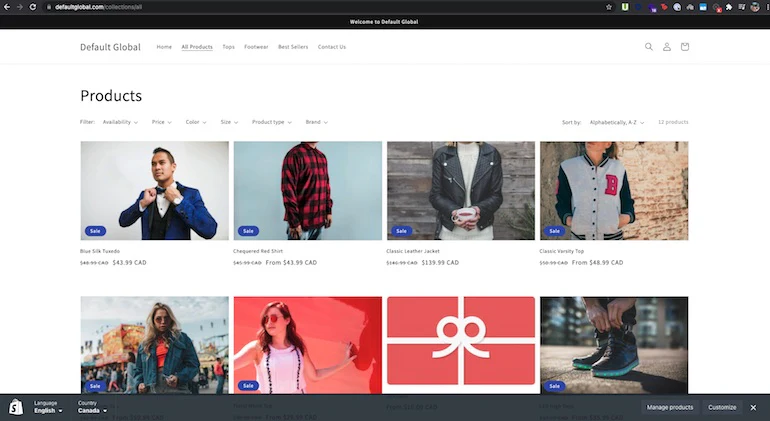
Whereas in this example, customers in Canada can see the Blue Silk Tuxedo on collection pages

Change theme sections based on country

You can also leverage the localization and country objects to change theme content based on country—like a banner on the homepage. Using the same Canadian client example as above, perhaps they would like to have a temporary homepage banner wishing their US customers a Happy Thanksgiving. There are a couple of different things you can do to make this possible.

First, inside the image-banner.liquid file of the Dawn theme, you can make an addition to the top of the theme schema:

Copy to clipboard
{% comment %}
Schema that adds a basic text input field to the image banner home page section of Shopify's Dawn theme.
{% endcomment %}

{
"type": "text",
"id": "available_countries",
"label": "Add the ISO code of the country that should see this banner."
}

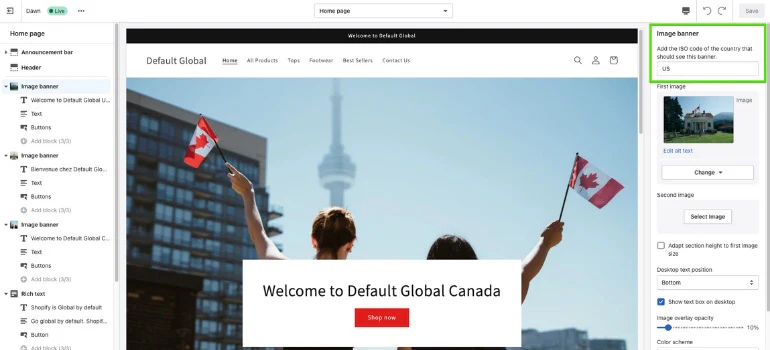
For brevity, this example produces a basic text field where a merchant can input a two-letter ISO code when adding an Image banner section to their homepage.

Next, you can add a control flow statement that wraps all of the content in the image-banner.liquid file. This statement will either show or hide the section based on the country inputted into the text field above.

Congrats! You’ve now contextualized your store content

This tutorial has demonstrated three popular examples of how products, collections, and content can be customized based on country using simple control flow tags, and the country and localization liquid objects. These are just a few examples of how your website content can be adapted based on your users’ or client’s customers’ country, but you can adapt this approach to many other use cases.

Need Help With Shopify Development?

Work with our skilled Shopify developers to accelerate your project and boost its performance.

Support On Demand!