Visual Studio Code (VS Code) Setup Guide

Introduction:

Visual Studio Code (VS Code) is a simple yet robust source code editor developed by Microsoft. It supports multiple programming languages such as C#, Python, JavaScript, TypeScript, and more. It is available for Windows, macOS, and Linux.

Download Visual Studio Code

Download URL: https://code.visualstudio.com/

Steps to Download

  1. Open the above link in your web browser.
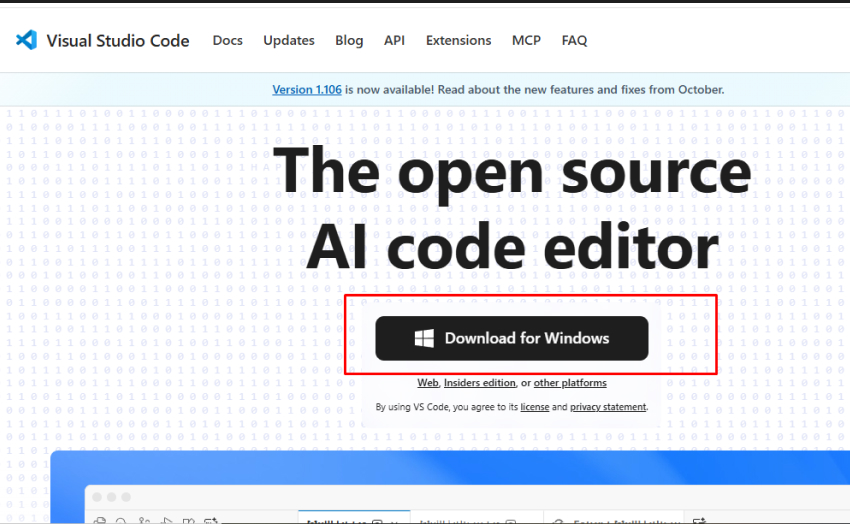
  2. Click on the “Download for Windows” button (or select your OS manually).
Visual Studio Code website showing the Download for Windows button highlighted on the homepage.

3. Wait for the .exe file (e.g., VSCodeSetup-x64-1.xx.x.exe) to download.

Install Visual Studio Code

Follow these steps to install Visual Studio Code:

1.  Double-click the downloaded VSCodeSetup.exe file.

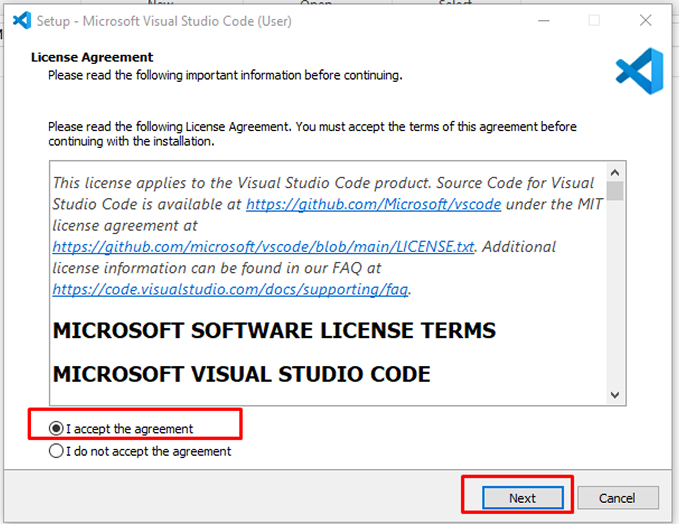
2. Accept the License Agreement and click Next.

Visual Studio Code setup window showing the license agreement screen with the ‘I accept the agreement’ option highlighted.

3. Choose the Installation Location (default path is fine).

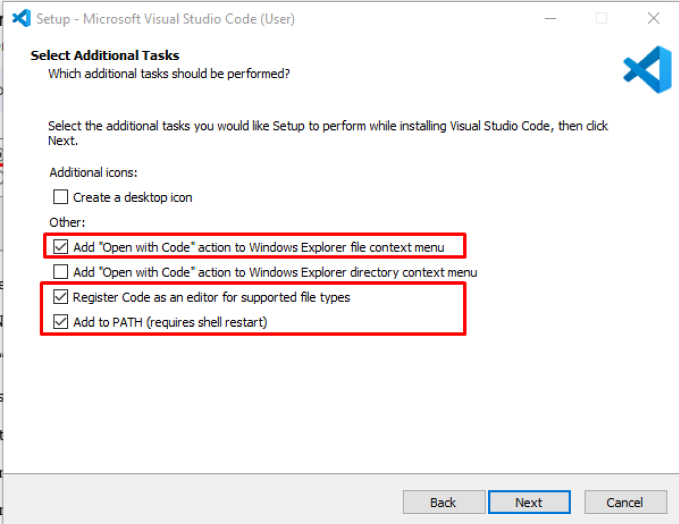
4. Click Next and select:

  • Add “Open with Code” to Windows Explorer context menu
  • Register Code as an editor for supported file types
  • Add to PATH (important for command line usage)
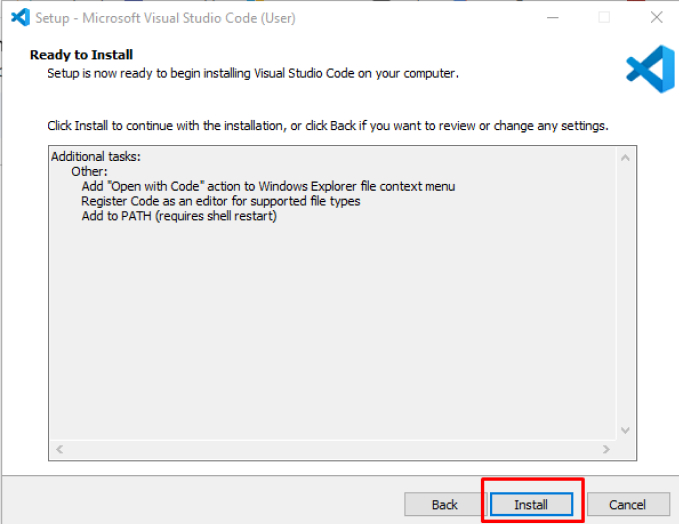
VS Code installation setup showing additional tasks options with several checkboxes selected, including Open with Code and Add to PATH.

5. Click Install.

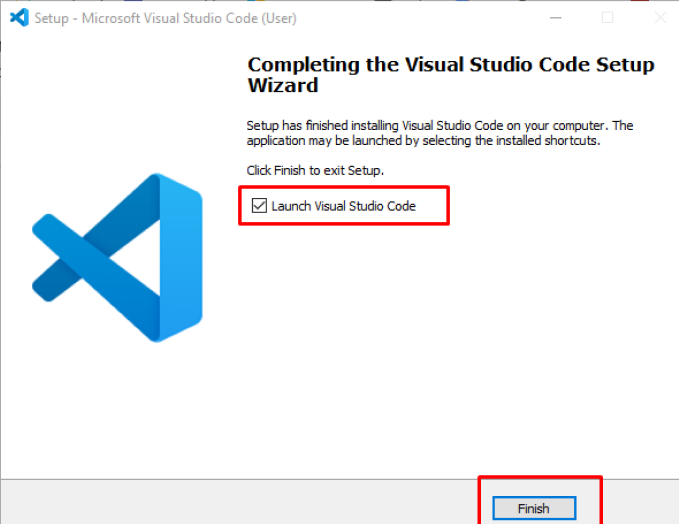
6. Once installation completes, click Finish and Launch Visual Studio Code.

Visual Studio Code setup wizard showing “Launch Visual Studio Code” checkbox and a Finish button.

First Launch & Interface Overview

Key Areas in VS Code:

  • Explorer (Ctrl + Shift + E): View and open files in your project folder
  • Search (Ctrl + Shift + F): Find text across your workspace
  • Source Control (Ctrl + Shift + G): Manage Git repositories
  • Run and Debug (Ctrl + Shift + D): Run your code with breakpoints
  • Extensions (Ctrl + Shift + X): Install extensions to add features

Install Important Extensions

Recommended Extensions:

Purpose

Extension Name

C# Development

C# (by Microsoft)

Python

Python (by Microsoft)

HTML/CSS/JS

Live Server (by Ritwick Dey)

Code Formatting

Prettier – Code Formatter

Version Control

GitLens

Themes

One Dark Pro

To install:

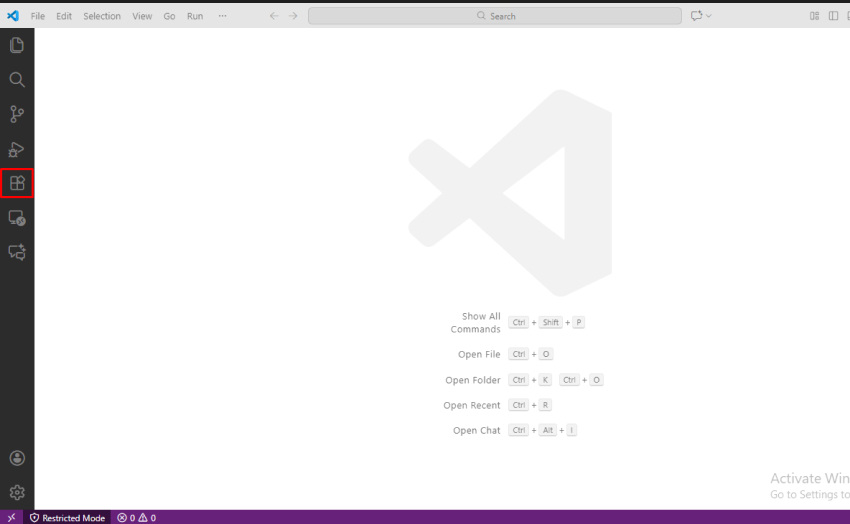
1. Click on the Extensions icon in the sidebar.

Visual Studio Code home screen with the Extensions icon highlighted on the left sidebar.

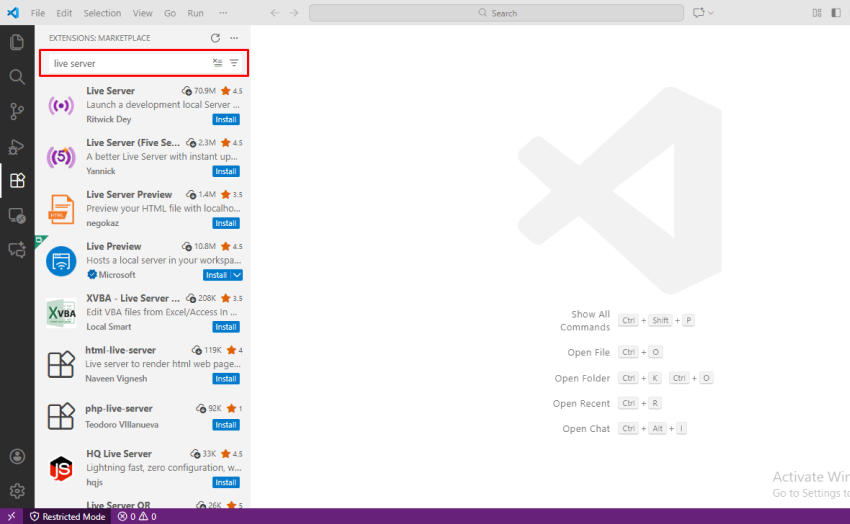
2. Search for the extension name.

Extensions Marketplace in VS Code showing search results for “Live Server.”

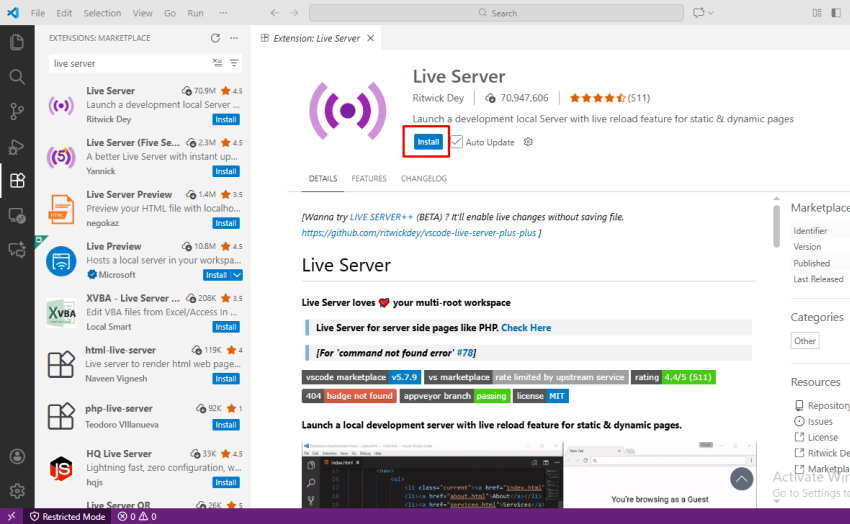
3. Click Install.

VS Code Live Server extension page showing the Install button highlighted.

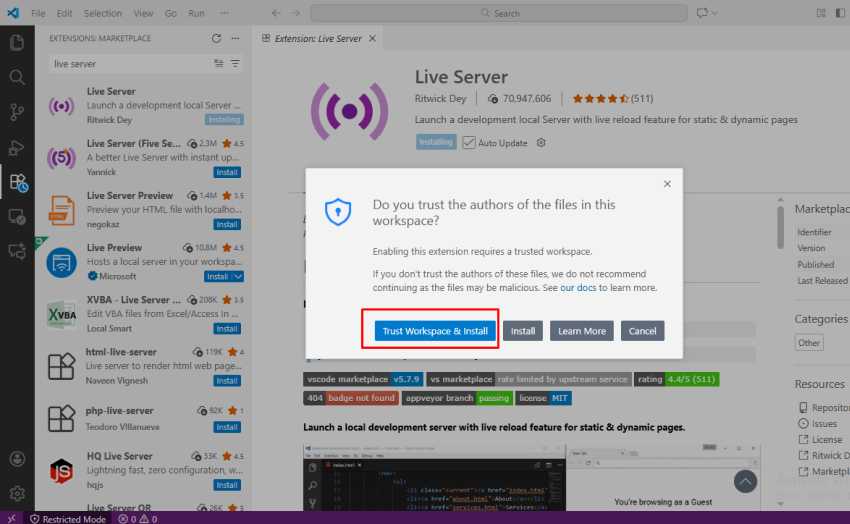
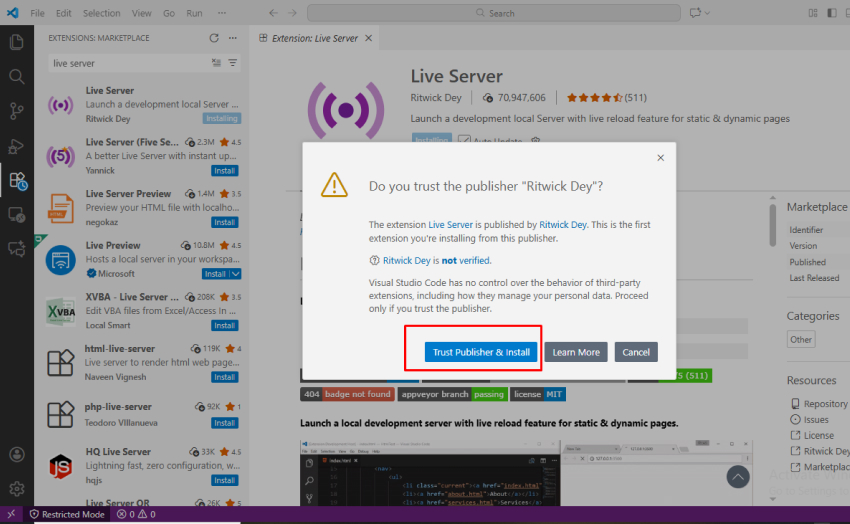
4. Click Trust Publisher and Install

VS Code prompt asking to trust the workspace before installing the Live Server extension.

5. Click Trust Workspace and Install

VS Code pop-up asking to trust the publisher Ritwick Dey before installing the Live Server extension.

Create Your First Project

Example – HTML Project:

1. Create a new folder (e.g., MyFirstProject).

2. Open it in VS Code.

3. Create a new file named index.html.

4. Type the following code:

<!DOCTYPE html>
<html>
<head>
    <title>Hello VS Code</title>
</head>
<body>
    <h1>Welcome to Visual Studio Code!</h1>
</body>
</html>

5. Save the file.

6. Right-click → Open with Live Server (if extension installed).

🌐
<!DOCTYPE html>
<html>
<head>
    <title>Hello VS Code</title>
</head>
<body>
    <h1>Welcome to Visual Studio Code!</h1>
</body>
</html>

 5. Save the file.

6. Right-click → Open with Live Server (if extension installed).

Integrated Terminal

Open Terminal: Press Ctrl + ` (backtick) to open the integrated terminal.

You can run commands directly from here — for example:

📟
python app.py
dotnet run
npm start

Keyboard Shortcuts (Most Useful)

Action

Shortcut

Open File

Ctrl + O

Save File

Ctrl + S

Open Terminal

Ctrl + `

Comment Line

Ctrl + /

Run Code

Ctrl + Alt + N (if Code Runner installed)

Open Command Palette

Ctrl + Shift + P

Toggle Sidebar

Ctrl + B

Uninstalling VS Code

1. Go to Control Panel → Programs → Programs and Features.

2. Find Visual Studio Code.

3. Right-click → Uninstall.

Conclusion

You have now successfully installed Visual Studio Code, adjusted your environment as you prefer, and created your first project. You are now ready to write applications in your language of choice.

Frequently Asked Questions FAQs

Visual Studio Code is a Microsoft built free code editor that is lightweight and open-source. VS Code supports a variety of programming languages, such as Python, JavaScript, C#, and more. It includes built-in integration with Git, and it has an extensive range of extensions available.

Go to the official Visual Studio Code website, download the installer for your OS, and then follow the instructions to set it up. Installing and setting up the application is quick and easy on all major platforms.

Yes, depending on the programming language you want to use Visual Studio Code for. Some examples are:

  • Python  ->  Install the Python extension
  • C#/ .NET   ->  Install C# by Microsoft
  • JavaScript / React   ->  Install Eslint, Prettier, and React developer tools

Extensions help with things like, code formatting, debugging, development processes, productivity, etc.

Sure! Just install the C# extension. You can build and debug .NET Core and ASP.NET applications all in Visual Studio Code using the integrated terminal and debugger!

Navigate to File > Preferences > Theme > Color Theme. VS Code includes both dark and light built-in themes, and you can also install your own themes via the Extensions Marketplace for a unique coding experience.