SQL Server Management Studio (SSMS) is a free tool from Microsoft that is primarily used to configure, manage, and administer Microsoft SQL Server. It provides a graphical interface to run SQL commands, create databases, tables, and stored procedures.
Requirement | Specification |
Operating System | Windows 10 / 11 (64-bit) |
Processor | 1.8 GHz or faster |
RAM | 4 GB minimum (8 GB recommended) |
Disk Space | At least 2 GB of free space |
Internet Connection | Required for downloading setup files |
Step 1: Download SQL Server
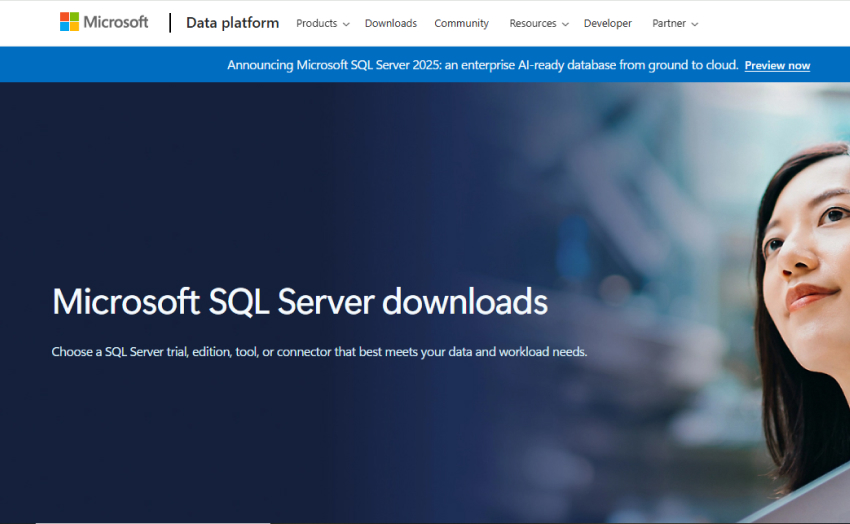
1. Visit https://www.microsoft.com/en-us/sql-server/sql-server-downloads
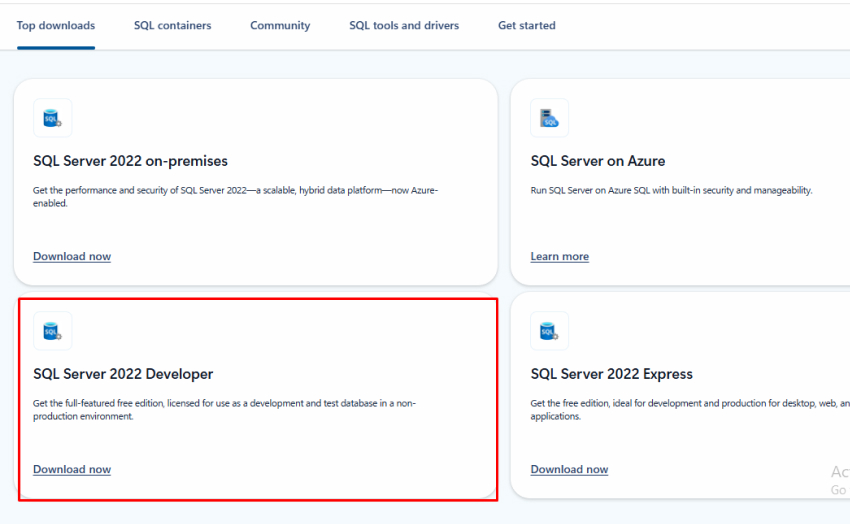
2. In the Top Downloads section, select SQL Server 2022 Developer.
3. This downloads the SQL Server installer (SQL2022-SSEI-Dev.exe).
Step 2: Install SQL Server
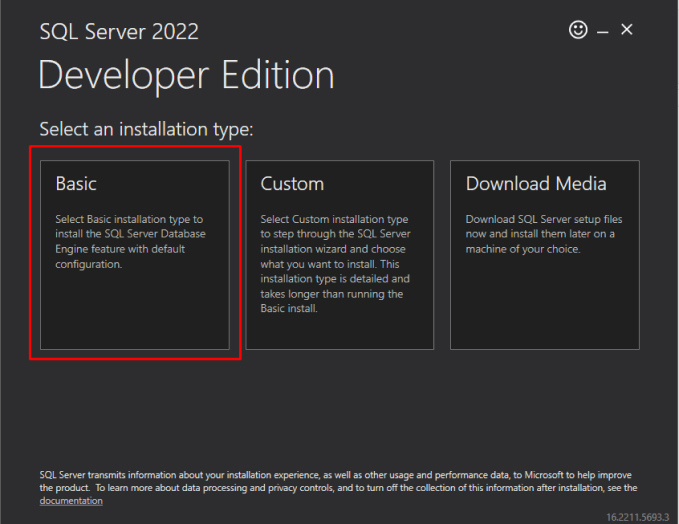
1. Run the installer and choose ‘Basic’ installation.
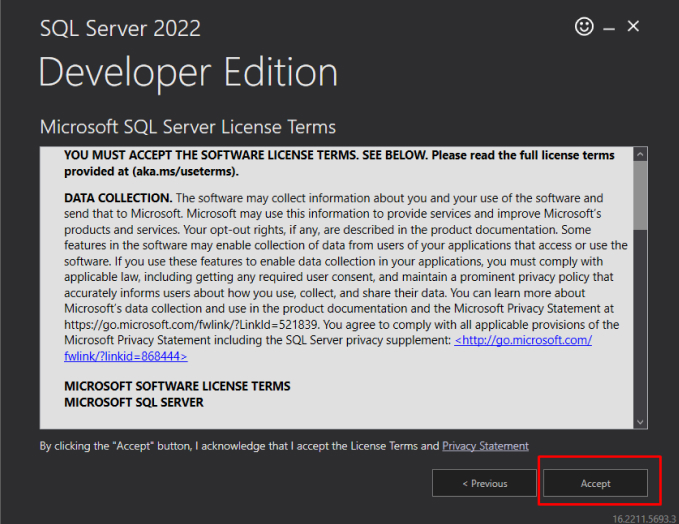
2. Accept the license terms and wait for completion.
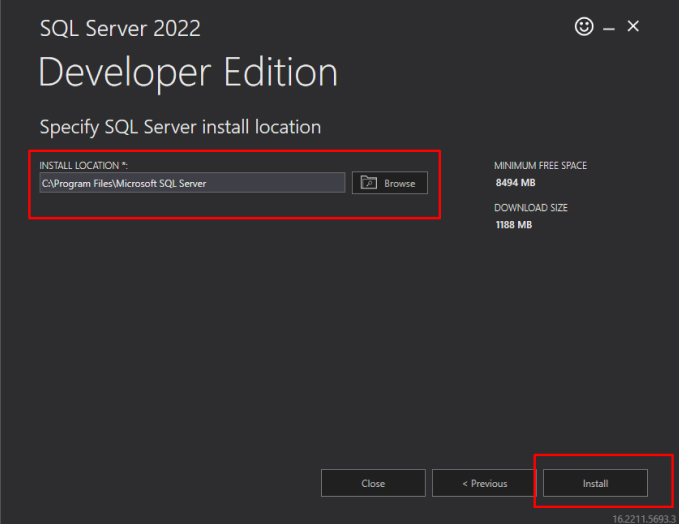
3. Specify the Path and click on install (default is fine)
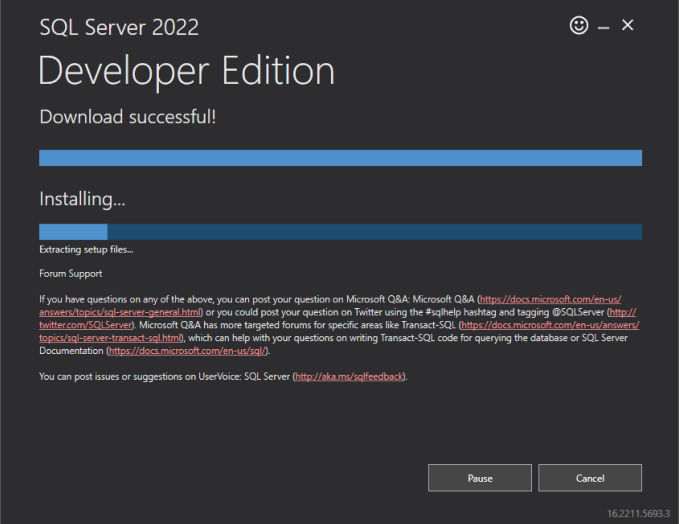
4. Wait for the download and installation process to finish.
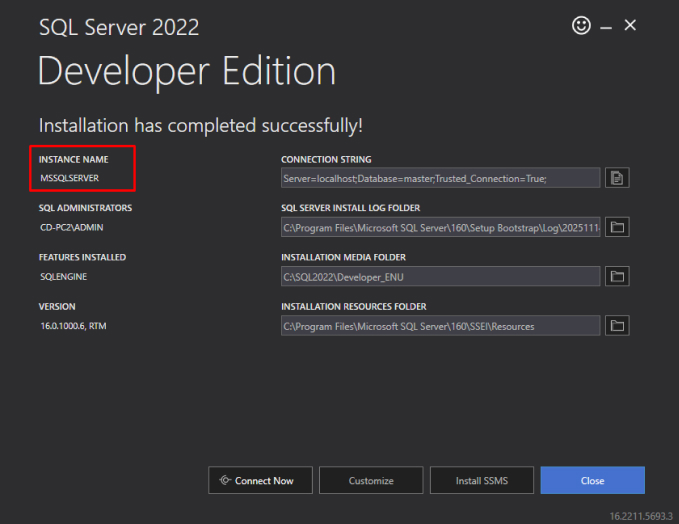
5. Note the Instance Name (e.g., MSSQLSERVER or SQLEXPRESS)
Step 3: Download SSMS
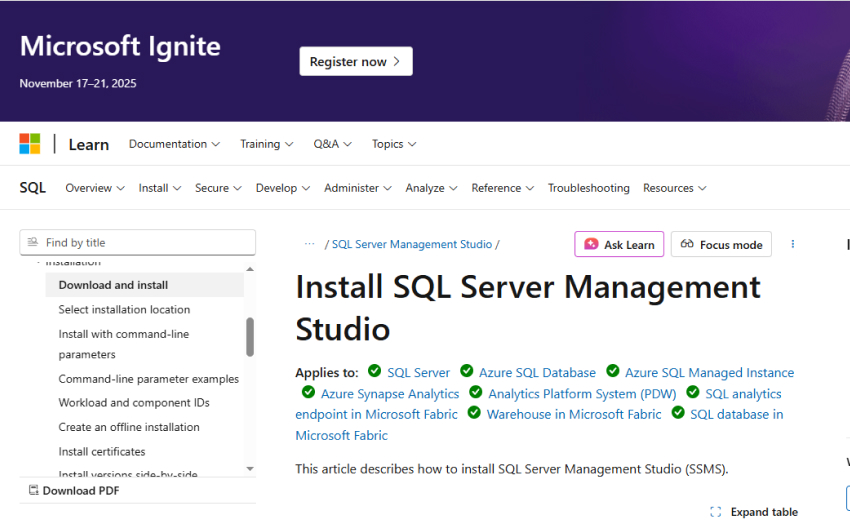
1. Go to https://learn.microsoft.com/en-us/ssms/install/install
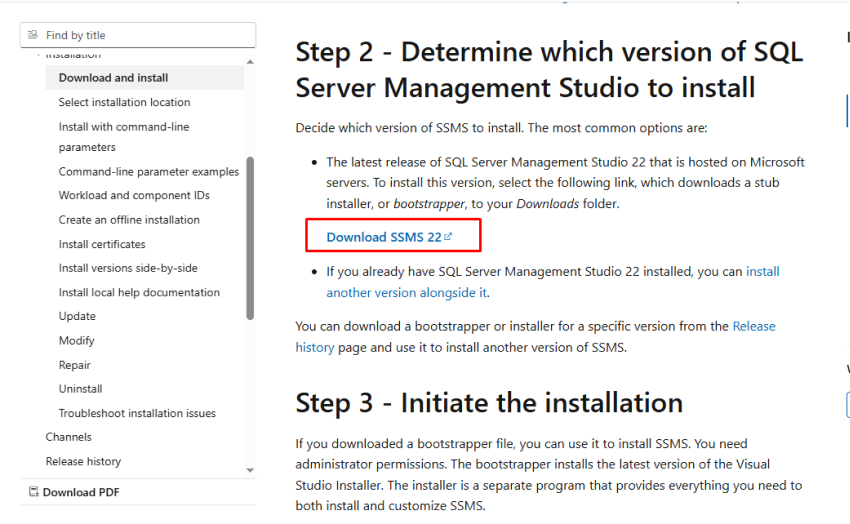
2. Click ‘Download SQL Server Management Studio (SSMS)’.
3. The setup file will be named SSMS-Setup-ENU.exe (~700 MB).
Step 4: Install SSMS
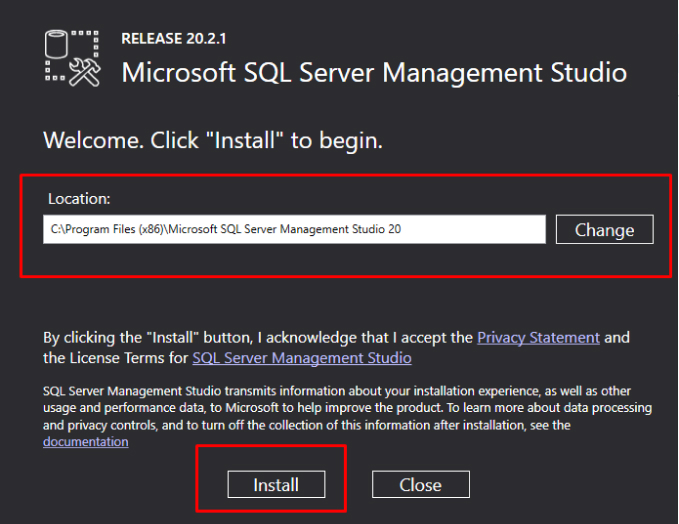
1. Run SSMS-Setup-ENU.exe.
2. Choose the installation path and click Install.
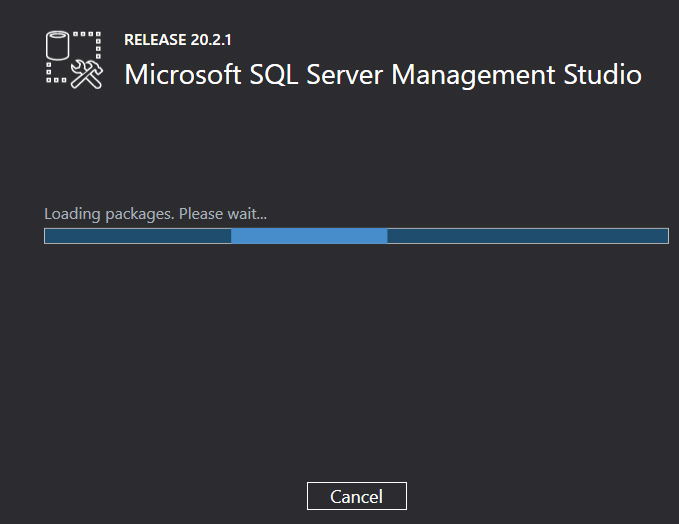
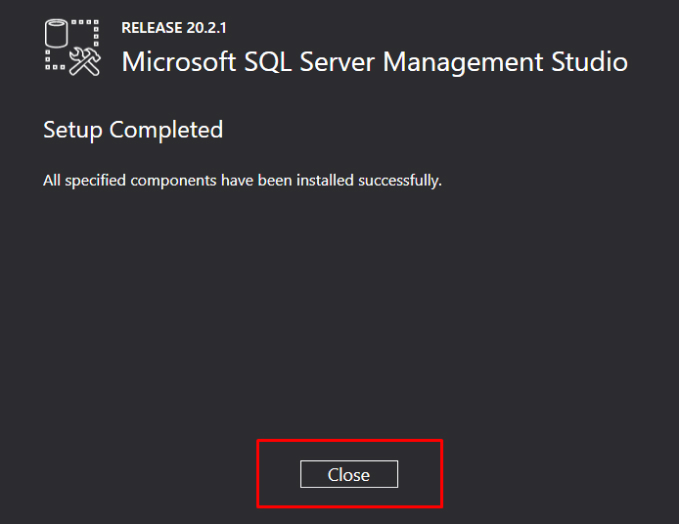
3. Wait for the installation process to complete.
4. After completion, click Close
1. Launch SSMS. The ‘Connect to Server’ window appears.
2. Enter the following details:
Field | Value |
Server type | Database Engine |
Server name | (local) or your instance name (e.g., .\SQLEXPRESS) |
Authentication | Windows Authentication |
Username/Password | Leave blank for Windows Authentication |
CREATE DATABASE StudentDB;
GO
USE StudentDB;
GO
CREATE TABLE Students (
StudentID INT IDENTITY(1,1) PRIMARY KEY,
FirstName NVARCHAR(50),
LastName NVARCHAR(50),
Age INT,
Course NVARCHAR(50)
);
GO
INSERT INTO Students (FirstName, LastName, Age, Course)
VALUES
(‘Amit’, ‘Sharma’, 21, ‘Computer Science’),
(‘Neha’, ‘Patel’, 22, ‘Information Technology’),
(‘Ravi’, ‘Kumar’, 20, ‘Electronics’);
GO
SELECT * FROM Students;
GO
UPDATE Students
SET Course = ‘Data Science’
WHERE StudentID = 2;
GO
DELETE FROM Students
WHERE StudentID = 3;
GO
DROP TABLE Students;
GO
DROP DATABASE StudentDB;
GO
Action | Shortcut |
Run query | F5 or Ctrl + E |
Comment selected code | Ctrl + K, Ctrl + C |
Uncomment code | Ctrl + K, Ctrl + U |
Format SQL code | Ctrl + K, Ctrl + D |
New Query window | Ctrl + N |
Execute line by line | F10 |
Issue | Possible Fix |
Cannot connect to server | Ensure SQL Server service is running (check Services.msc) |
Login failed | Use Windows Authentication instead of SQL Authentication |
Timeout errors | Check firewall and ensure port 1433 is open |
SSMS crashes or hangs | Repair installation via Apps → SSMS → Modify/Repair |
You have successfully installed SQL Server Management Studio (SSMS), and you have executed some basic SQL commands. You can create a database and manage it to write queries along with stored procedures, views, and triggers.
SQL Server Management Studio (SSMS) is the official database management tool provided by Microsoft for SQL Server. It features a graphical user interface (GUI) and query editor to work with databases, tables, and SQL queries more effectively than just using T-SQL commands.
In short, SQL Server does the heavy lifting, and SSMS gives you an interface to control it visually.
No - SSMS connects to a SQL Server instance (local or remote). If you do need to install SQL Server production use you'll need to have an instance of SQL Server installed locally or remote. You can install SQL Server Express, which is free to use, for local use and then connect to SQL Server Express through SSMS.
3rd Floor, Aval Complex, University Road, above Balaji Super Market, Panchayat Nagar Chowk, Indira Circle, Rajkot, Gujarat 360005.
Abbotsford, BC
15th B Street 103, al Otaiba Dubai DU 00000, United Arab Emirates
3rd Floor, Aval Complex, University Road, above Balaji Super Market, Panchayat Nagar Chowk, Indira Circle, Rajkot, Gujarat 360005.
Abbotsford, BC.
15th B Street 103, al Otaiba Dubai DU 00000, United Arab Emirates.
Copyright © 2026 Niotechone Software Solution Pvt. Ltd. All Rights Reserved.