JavaScript Day 7: Events, Strings & String Methods

Introduction

In this lesson, we will cover two major ideas that all developers should be familiar with if they want to build beautiful websites.

  1. String Manipulation – how to handle and format text data, split text into sections, and change how a string looks
  2. Event Handling – creating interactive websites by responding to their users’ clicks and movements. Why do you need to understand these two concepts already?

Why are these important?

  • Strings are everywhere in the realm of programming from user input fields to display text to passing around large amounts of information.Understanding how to use different string methods will help developers clean up input fields as well as manipulate data quickly and easily. 
  • Events are the lifeblood of web pages. Without events, a website would be static and unengaging. Users have options for engaging with sites via their actions and they will return knowing they can receive instant gratification for taking action on your website.


At the end of this lesson, students will have created a working program that enables them to manipulate strings, as well as provide feedback when a user clicks a button or hovers over a button. Let’s jump in!

Step-by-Step Tutorial

Step 1: Setting Up the HTML Structure

To get started, let us build the basic HTML structure for the application.

🌐
<title>DAY-7</title>


    <h2>JS String Method Example</h2>
    <p id="demo"></p>
    
    <h2>JavaScript Event Demo</h2>
    <button>Click Me</button>
    
    <div id="hoverBox" style="width: 150px;height: 150px;background-color: lightblue;text-align: center;line-height: 150px;font-size: 18px;cursor: pointer">
        Hover Me
    </div>
    
    <p id="output"></p>


What’s happening here?

  • <p id=”demo”></p> – An empty paragraph where we’ll display our string manipulation results
  • <button onclick=”showMessage()”> – A button that triggers the showMessage() function when clicked
  • <div id=”hoverBox”> – A colored box that changes appearance when you hover your mouse over it
  • <p id=”output”></p> – Another paragraph to display messages when the button is clicked


Pro Tip:
Always give meaningful IDs to elements you want to manipulate with JavaScript. This makes your code easier to read and maintain!

Step 2: Adding String Manipulation Logic

Now let’s add JavaScript code to demonstrate powerful string methods.

🎨

    let str = "Hello JavaScript World!";
    let result = str.trim();
    result = result.toUpperCase();
    result = result.replace("JAVASCRIPT", ".NET ");
    let part = result.slice(6, 12);
    
    document.getElementById("demo").innerHTML =
        "Modified: " + result + "<br>" +
        "Part: " + part + "<br>" +
        "Length: " + result.length;

Breaking it down:

  1. let str = “Hello JavaScript World!” – We create a string variable with some text
  2. str.trim() – Removes any extra spaces from the beginning and end (not visible here, but important for user inputs!)
  3. result.toUpperCase() – Converts all letters to UPPERCASE
  4. result.replace(“JAVASCRIPT”, “.NET “) – Finds “JAVASCRIPT” and replaces it with “.NET “
  5. result.slice(6, 12) – Extracts characters from position 6 to 11 (slice doesn’t include the end position)
  6. document.getElementById(“demo”).innerHTML – Finds the paragraph with id=”demo” and puts our results inside it


Note:
String methods DON’T change the original string – they return a new modified string! That’s why we store results in variables.

Step 3: Creating Event Handler Functions

Create a new file called Index.js (or add this script in your HTML) with the following functions:

📄
function showMessage() {
    document.getElementById("output").innerHTML = "Button was clicked!";
}

What does this do?

When the button is clicked, this function:

  • Finds the element with id=”output”
  • Changes its content to display “Button was clicked!”


This illustrates the onclick event, which is one of the most popular events in web development. 

Common Use Cases: Submitting forms, adding items to a cart, opening modals, playing sounds, etc. 

Step 4: Adding Mouse Hover Effects

Add the following two functions to process mouse hover events:

📄
function changeColor() {
    document.getElementById("hoverBox").style.backgroundColor = "orange";
    document.getElementById("hoverBox").innerHTML = "Mouse Over!";
}

function resetColor() {
    document.getElementById("hoverBox").style.backgroundColor = "lightblue";
    document.getElementById("hoverBox").innerHTML = "Hover Me";
}

How it works:

changeColor() – 

  • onmouseover (when the mouse enters the box) is activated. 
  • The background color changed to orange
  • Change text to “Mouse Over!” 

resetColor() – 

  • activated by onmouseout (when the mouse is out of the box)
  • Background back to lightblue. 
  • Returns text to “Hover Me” 

Pro Tip: CSS properties can be accessed in JavaScript with element.style.propertyName. Only to keep in mind to use camelCase (backgroundColor rather than background-color).

Step 5: Linking the JavaScript File

Remember to include your JavaScript file prior to the closing </body> tag:

🎨

Note: Scripts should be placed at the bottom of the body to ensure that all the HTML elements are loaded before JavaScript attempts to access them!

Code Explanation Sections

String Manipulation Section

Let’s understand the string methods in detail:

🎨
let str = "Hello JavaScript World!";
let result = str.trim();            // Step 1: Remove whitespace
result = result.toUpperCase();      // Step 2: Convert to uppercase
result = result.replace("JAVASCRIPT", ".NET ");  // Step 3: Replace text
let part = result.slice(6, 12);     // Step 4: Extract substring

Flow of transformation:

  1. Original: “Hello JavaScript World!”
  2. After trim: “Hello JavaScript World!” (no change visible)
  3. After toUpperCase: “HELLO JAVASCRIPT WORLD!”
  4. After replace: “HELLO .NET WORLD!”
  5. Slice extracts: “.NET


Why use these methods? 

  • trim() – This is necessary to clean up user input (removes unintentional spaces) 
  • toUpperCase() – handy when you need to do a case-insensitive comparison or formatting. 
  • replace() – Ideal in find and replace.
  • slice() – Useful to cut out sections of a string such as usernames, dates or codes


Event Handling Section

🎨
<button>Click Me</button>

Event Binding Explained:

The onclick attribute directly attaches the showMessage() function to the click event of the button. 

When a user clicks: 

  • Browser detects the click 
  • Seeks the onclick handler
  • Executes showMessage()
  • Function updates the DOM 


Alternative Modern Approach:

📄
// In your JavaScript file
document.getElementById("myButton").addEventListener("click", showMessage);

This is the new, desirable method because it separates HTML structure and JavaScript behavior! 

DOM Manipulation Section

📄
document.getElementById("hoverBox").style.backgroundColor = "orange";

What’s happening: 

  • document- The whole HTML document. 
  • getElementById(hoverBox) – locates the element with that ID. 
  • .style – Retrieves the CSS styles of the element. 
  • .backgroundColor – CSS property that is specific. 
  • = “orange” – Sets the new value 

Key Concept:  This is referred to as DOM Manipulation – dynamically manipulating HTML/CSS with JavaScript!

Tables of Key Concepts

1. Components / Keywords Used

Name

Description

let

Declares a block-scoped variable that can be reassigned

document

Object representing the HTML document; entry point to the DOM

getElementById()

Finds and returns an HTML element by its ID attribute

innerHTML

Property to get or set the HTML content inside an element

onclick

Event attribute that triggers when an element is clicked

onmouseover

Event attribute that triggers when mouse pointer enters an element

onmouseout

Event attribute that triggers when mouse pointer leaves an element

style

Property to access and modify CSS styles of an element

<script>

HTML tag used to embed or reference JavaScript code

2. Key Properties / String Methods / Features

Name

Description

trim()

Removes whitespace from both ends of a string

toUpperCase()

Converts all characters in a string to uppercase letters

toLowerCase()

Converts all characters in a string to lowercase letters

replace(old, new)

Replaces the first occurrence of a substring with a new value

slice(start, end)

Extracts a section of a string from start index to (end-1) index

substring(start, end)

Similar to slice but doesn’t accept negative indices

length

Property that returns the number of characters in a string

backgroundColor

CSS property accessed via JavaScript to change background color

cursor

CSS property that changes the mouse cursor appearance

Summary

Day 7 introduces three important concepts that make JavaScript interactive and powerful—Events, Strings, and String Methods. You learn how JavaScript events respond to user actions such as clicks, typing, hovering, and form submissions using event listeners. Then you explore strings, which represent text data, and understand how to create, combine, and format them efficiently. Finally, you study commonly used string methods like length, toLowerCase(), toUpperCase(), trim(), split(), replace(), and includes() to manipulate text easily. By the end of this lesson, you can build interactive web pages and control text dynamically with confidence.

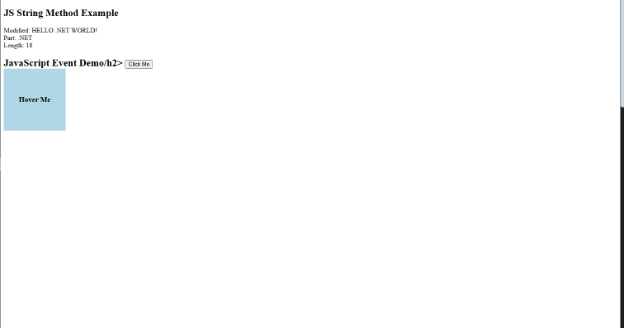
Output

Frequently Asked Questions FAQs

Events are actions triggered by users such as clicking a button, typing in an input field, moving the mouse, or submitting a form.

An event listener waits for an event to occur and then runs a function when that event happens.

A string is a sequence of characters used to store text, such as names, messages, and user input.

String methods allow you to modify, search, format, and clean text data easily without writing complex logic.

No, Strings are immutable in JavaScript, which means methods like toUpperCase() or replace() always return a new string without changing the original one.